
Help Center
FAQ
Common questions you may run into — the answer you need may be here. Can't find it? Scan the QR code at the bottom to add our official support, or contact your sales agent.
I. Installation & Updates
1 After opening PS, the new plugin doesn't appear in Plugins. What should I do?
After installation, please restart Photoshop.In many cases the plugin is missing because PS was not restarted to load the new resources.
Also confirm your Photoshop version:
- Open PS.
- Mac: menu bar "Photoshop → About Photoshop"; Windows: "Help → About Photoshop".
- Check the version number: it must be the official 2025 or 2026 release (excluding unofficial lightweight builds after 27.7).
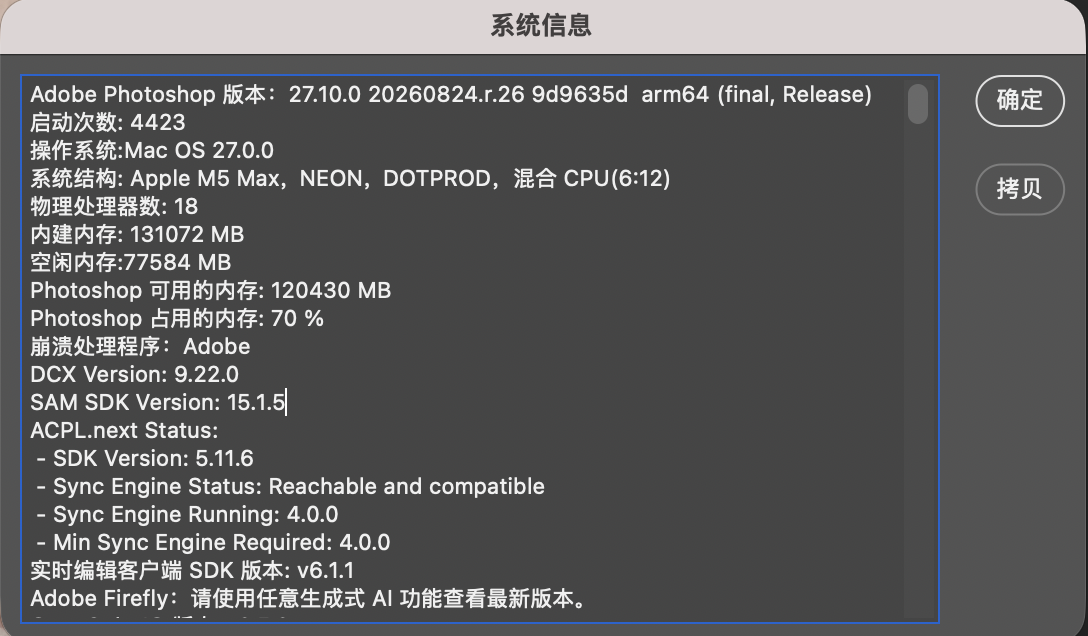
If the version doesn't match, go to the "Downloads" page at the top and install the latest plugin for your platform.
2 What if the Banana model is unavailable?
Auto-update cannot fix this. Please go to the "Downloads" page at the top and overwrite-install the latest version to recover.
Tip: close Photoshop before overwriting, to avoid file locks causing installation failure.
3 What if the downloaded file won't open?
Browsers such as Edge / Chrome may block the downloaded installer via SmartScreen with the warning "this file usually isn't downloaded". This is a browser security mechanism, not a problem with the file.
Solution:
- Open the browser's download list (download icon in the top-right corner).
- Right-click the downloaded file and choose "Keep".
- In the security dialog that appears, choose "Keep anyway".
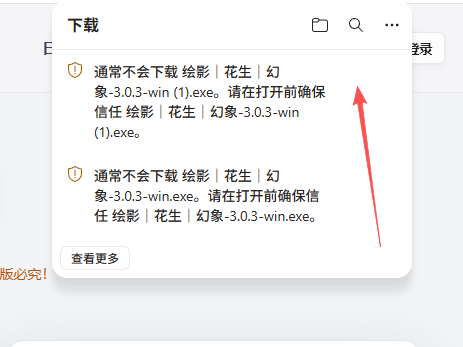
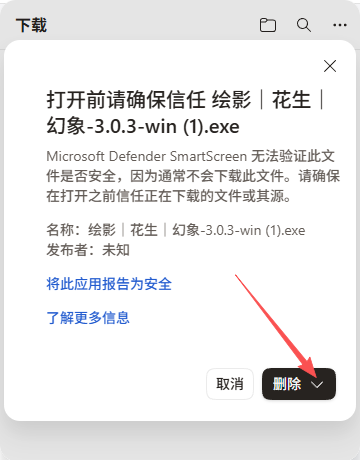
Tip: Mac users are unaffected; Windows users experiencing repeated blocks can temporarily turn off SmartScreen warnings and re-enable them afterwards.
4 What if installation fails because the path contains non-English or special characters?
Photoshop 增效工具目录、用户目录、临时目录中含有中文、空格或特殊符号(如 &、#、%)时,可能导致插件加载失败或安装器无法识别路径。
Solution:
- Install Photoshop in a pure English path, e.g.
C:\Program Files\Adobe\Adobe Photoshop 2025. - Set the Plug-ins folder to an English path, e.g.
C:\PS_Plug-ins. - Avoid non-English characters in Windows usernames; Mac is generally unaffected.
The path may only contain English letters, digits, hyphens, and underscores.
5 What if the installer can't detect Photoshop?
The installer looks for the PS installation directory in the following order; if not found, handle it according to your platform:
- Windows: Registry
HKEY_LOCAL_MACHINE\SOFTWARE\Adobe\Photoshop, common system pathsC:\Program Files\Adobe\. - macOS:
/Applications/Adobe Photoshop 2025/and other system application directories.
Common reasons detection fails:
- PS is installed in a non-default location, e.g. a custom path such as D:\MyApps\Photoshop\.
- PS is an unofficial / stripped-down build and did not write to the registry.
- The PS version string format is abnormal (e.g. unofficial builds of 27.7+).
Solution: manually select the Plug-ins directory to complete installation. The new version only supports official 2025/2026 releases; unofficial lightweight builds are not supported.
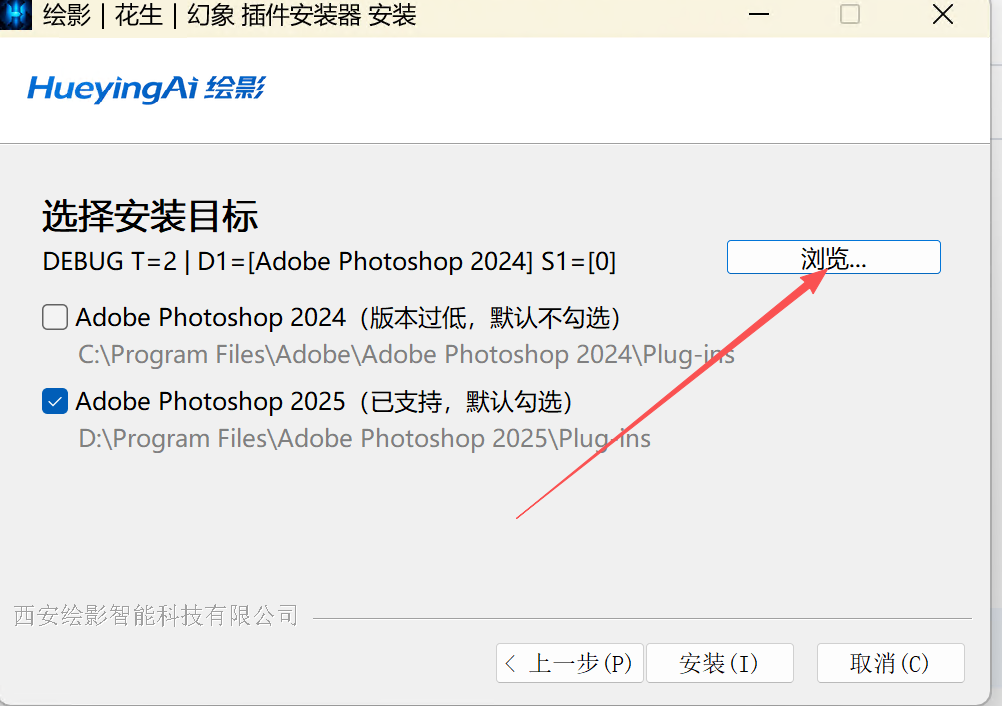
Example: click "Browse…" and manually select Photoshop's Plug-ins folder to continue installation.
6 Already installed the new version — how do I uninstall the old one?
Go to Photoshop's installation directory and open thePlug-ins (the blue folder), then delete the old plugin folder inside — delete the plugin folder itself, not the Plug-ins directory. For example:
绘影|AIGC绘影|幻象Cos绘影|花生国风(相一古风)
WindowsDefault path (using "绘影|AIGC" as an example):C:\Program Files\Adobe\Adobe Photoshop 2025\Plug-ins\绘影|AIGC
macOSDefault path (using "绘影|AIGC" as an example):/Applications/Adobe Photoshop 2025/Plug-ins/绘影|AIGC
Note: do not delete the entire Plug-ins directory, otherwise all plugins may fail to install and work properly. Just delete the old plugin folder. You must restart Photoshop afterwards, otherwise the cache may still use the old resources.
7 Do all future updates require downloading the installer to overwrite?
Not necessarily. The rules:
- Major version updates: overwrite installation is required (e.g. 2.x → 3.x); auto-update cannot guarantee resource files stay in sync.
- Minor version updates: the built-in auto-update is enough (e.g. 3.0.1 → 3.0.2); no need to download the installer.
How to tell: check whether the first line of the changelog says "overwrite installation required". Due to PS framework limitations, some low-level structural changes only take effect after an overwrite installation.

Example: if you have both Peanuts and Phantom, go to the "Downloads" page to install the multi-open clone version; after binding an email, you can share the wallet balance.
II. Login & Account
8 What if login fails / the password is wrong / the account is lost?
Troubleshoot in this order:
- Check that the account and password are entered correctly — they are case-sensitive.
- If it says "username does not exist", first confirm whether the account has been activated, and contact your sales agent.
- If the account is bound to an email, you can reset the password via email.
Still stuck: contact your sales agent.
9 The account and password are correct, but it still says invalid password / invalid identity / username does not exist?
First check for input mistakes (especially extra spaces or hidden characters when copy-pasting). If everything is correct:
- Update to the latest version (top "Downloads" — overwrite-install the latest version).
- If the error persists, contact your sales agent to check the account status.
This message may also be caused by a disabled cloud account or overdue-payment protection; please confirm the actual account status with your sales agent.
10 I have both Peanuts and Phantom accounts — how do I switch identities inside the plugin?
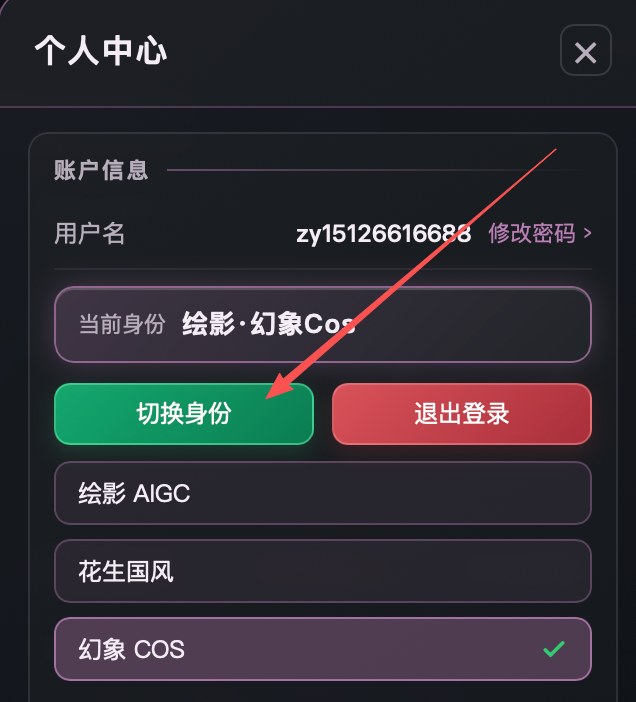
Set the account and password of the different products to the same values, or bind multiple accounts to the same email. After binding an email, account assets can be inherited and shared. ClickNot Bound to jump to the email binding screen.
The "Switch Identity" button in the plugin's profile center lets you switch between Hueying, Peanuts and Phantom identities
11 I have both Peanuts and Phantom — how do I use them separately?
Go to the "Downloads" page at the top and download the "multi-open clone version".
After binding an email, you can change the password of each account separately and share the wallet balance, avoiding switching back and forth.
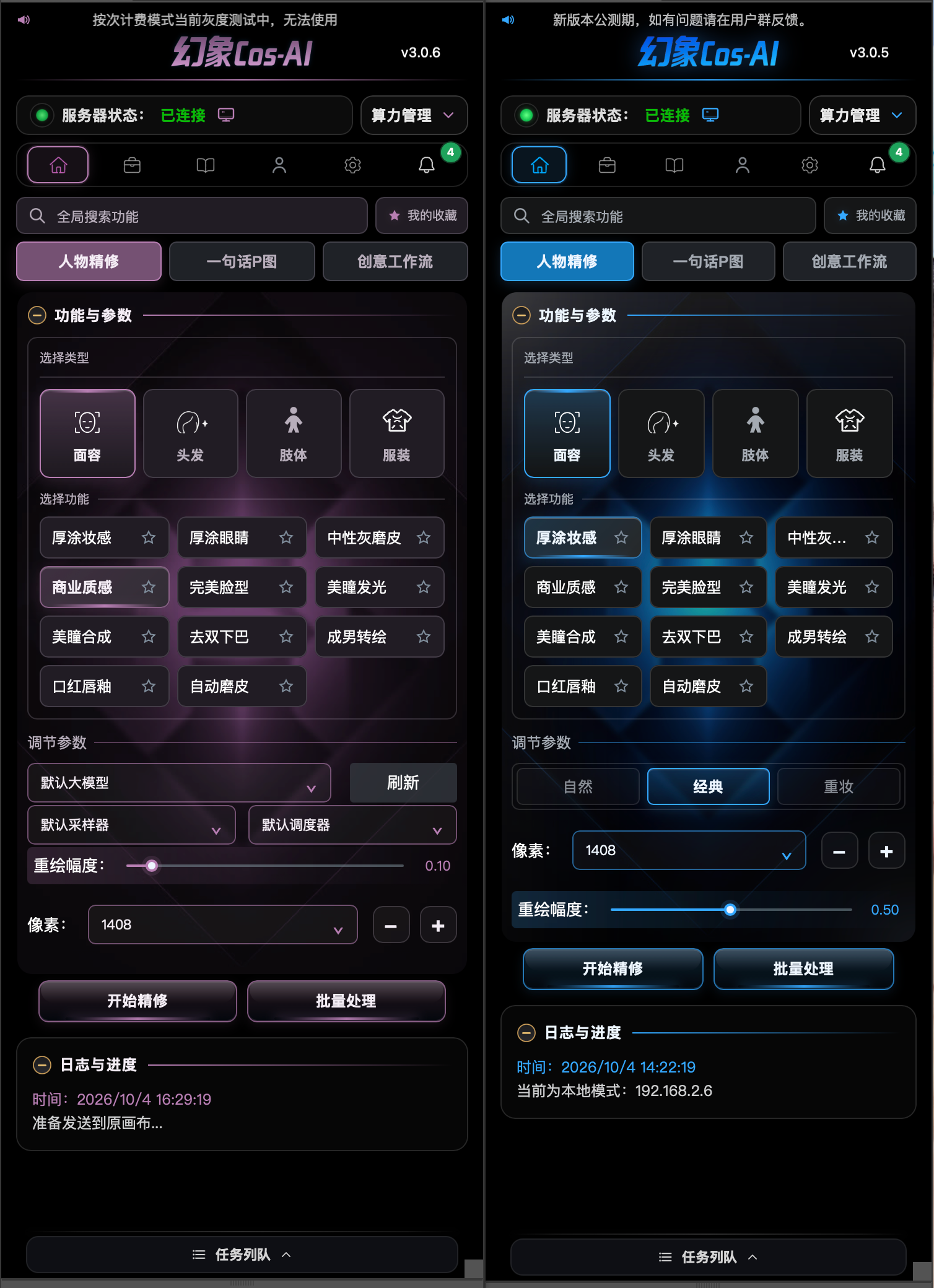
Example: left v3.0.5 (old) → right v3.0.6 (new); when the visual difference between major versions is obvious, an overwrite installation is recommended.
III. Models & Generation
12 What should I do about the error "command xx is unavailable"?
This message usually means the plugin is incompatible with the current PS version or resource files.
Steps to fix:
- Try "Settings → Reload Plugin" inside the plugin once.
- If it still doesn't work, go to the "Downloads" page at the top and overwrite-install the latest version.
- If the error persists after overwriting, send a screenshot to your sales agent.
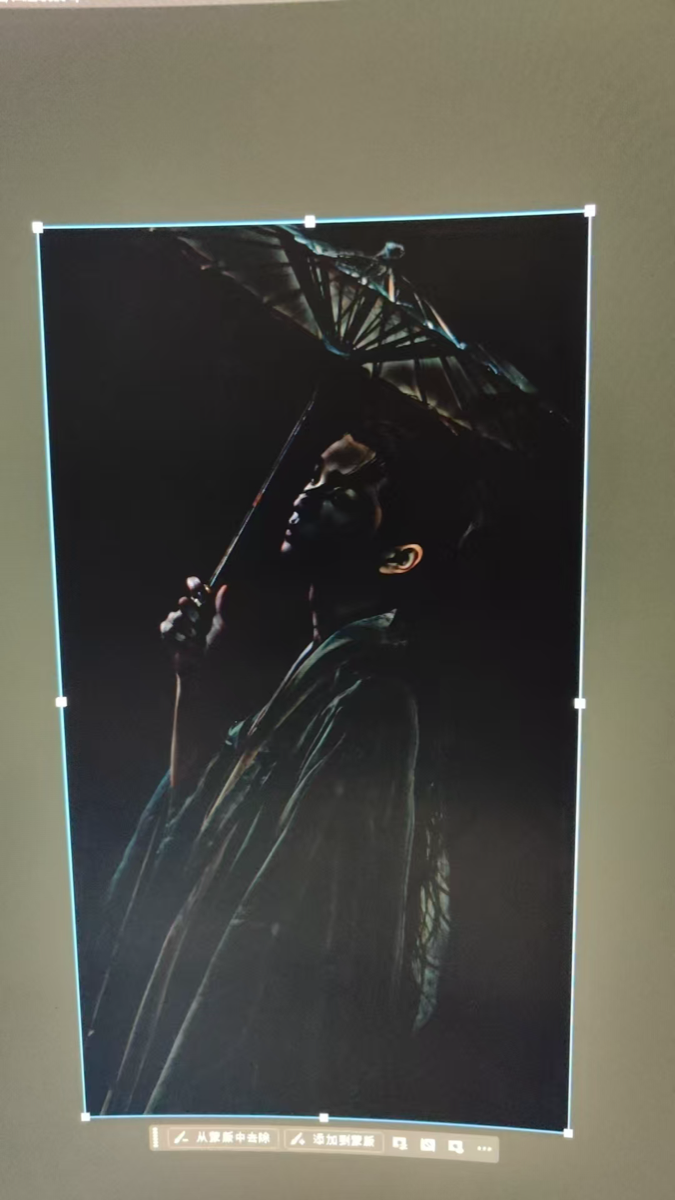
13 What if the generated image is black?
If generated images appear black, troubleshoot in this order:
- First confirm your PS version and computer memory. According to the official PS documentation, PS 2026 requires 32GB+ of RAM; if your memory is below 32GB, GPU rendering anomalies may produce black images. Please switch to PS 2025.
- Some remote GPUs have their own anomalies; try destroying and rebuilding a GPU instance.
IV. Billing & Balance
14 GPT / Banana model generation failed but I was still charged. What should I do?
Charges are pre-authorization. When a task fails, the system automatically refunds and the balance is restored.
It usually arrives within 1–3 minutes; if not, take screenshots of the generation record and balance and contact your sales agent to verify.
Pre-authorization prevents malicious abuse of cloud computing resources. Please use with confidence.
V. Errors & Exceptions
15 The plugin panel is blank after loading. What should I do?
Make sure the Photoshop version is 2025 or above and below version 27.7.There is currently a bug in official Photoshop releases; some versions cause the panel to load completely blank.
If you run into this problem, go to the "Downloads" page at the top and download the PS installation resources we provide (verified compatible with the new plugin).
Tip: if the PS version is confirmed correct, try "Reload Plugin" in the plugin settings; if it still doesn't work, overwrite-install the latest plugin version.
16 The output image has ghosting or misalignment. What should I do?
If the output image shows ghosting / misalignment, troubleshoot in this order:
- Click the "Draw" button to generate once more (the model has built-in randomness; multiple attempts may give a satisfactory result).
- If the problem persists, crop the image a little to change its dimensions to a standard ratio (e.g. 1:1, 3:4, 4:3, 16:9), then retry.
- You can also crop off a thin edge (about 1–2 pixels) and generate again.
Tip: if none of the above works, update to the latest plugin version and send a screenshot to your sales agent.
17 Are Hueying, Peanuts and Phantom merged?
No, they are not merged.Hueying, Peanuts and Phantom are three independent brand products, each with its own feature set.
The three plugins currently share the same host application (the plugin container in Photoshop) to make maintenance and upgrades easier. Different accounts unlock different features.
To log in to multiple accounts at the same time, go to the "Downloads" page at the top and download the "Dual-Open Version" to use alongside the main plugin. After binding an email, the wallet balance can be shared and each account's password managed separately.
Didn't find an answer?
Scan the QR code below to add our official support, or contact your sales agent for help.